![eCLogo.png]](https://help.samaritan.com/hs-fs/hubfs/eCLogo.png?height=40&name=eCLogo.png)
The criteria used to check for duplicate records is defined in the Account Management System (AMS) Info tab. If you do not see this filter option, please contact Support or your Account Manager for details.
Common fields the duplicate system use include: Last and First Name, email address, zip. The system has the ability to create a filter to automatically check for these fields on the Volunteer Profile to identify duplicate records.
To create this filter, you will utilize the Filter System in eCoordinator:
-
From the Volunteer main grid, click the "Filters" button.
-
Create a new search, or edit an existing one.
-
Click to add new requirements.
-
Open the "Volunteer Fields" section, and scroll alphabetically to the field "Show only the volunteers with duplicates".
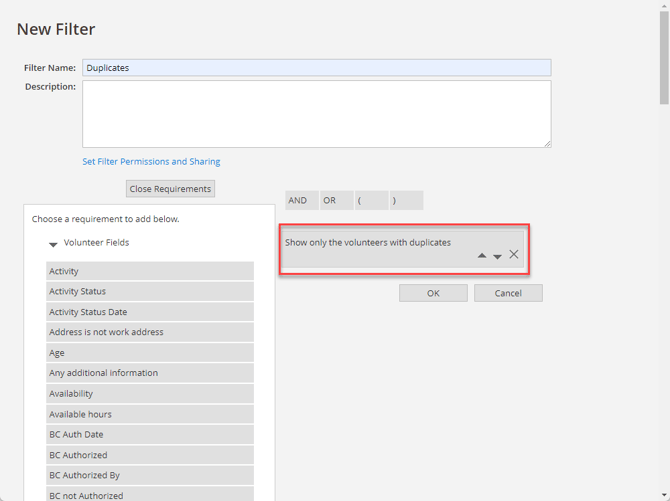
5. Click on this item, then click the "Save" button to add it to your list of filters.
6. Save the Filter.
7. Select your search from the "Filters" drop-down in the main grid to run the search.
Note: Duplicates must be manually merged.