![eCLogo.png]](https://help.samaritan.com/hs-fs/hubfs/eCLogo.png?height=40&name=eCLogo.png)
Saving & Loading Templates
Saving a Template: Compose your email, text, or SIS message as usual. Once your draft is perfect, enter a Template Name, and click Save.
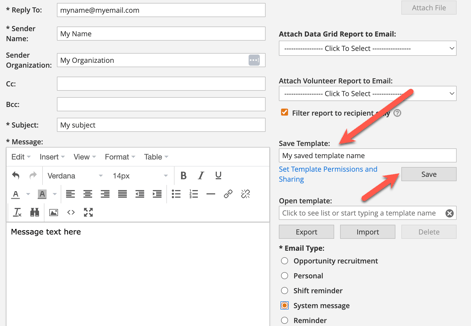
Remember, you can also use the blue "Set Template Permissions and Sharing" link to give other eC users in your organization the ability to use your template.
Opening a Saved Template: Click anywhere in the open template search box to view a list of saved templates, or start typing the name of the template you are looking for to dynamically filter on the spot.
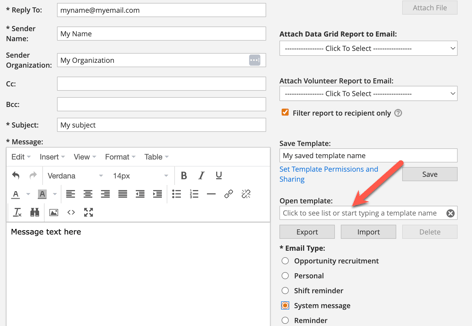
Profile-Specific Logic: Remember that templates are tied to the tab where they were created. A template saved in the Opportunities tab won't appear when you are in the Volunteers tab.
The Power of Message Templates: More Than Just a Shortcut
We know your time is precious. While Message Templates are a great way to avoid rewriting the same "Welcome" email for the hundredth time, their real magic lies in how they work behind the scenes to keep your community feeling cared for even when you’re busy with other tasks.
Think of templates as the "fuel" for your automated workflows. Once a template is saved, you can put it to work in two powerful ways:
1. Automations - You can attach templates to specific system triggers so the software handles the outreach for you.
-
The Personal Touch: Set a "Happy Birthday" template to trigger automatically on a vol's special day.
-
The "Safety Net" Confirmation: Link a template to a shift signup. The moment a volunteer commits, they’ll receive an instant confirmation with all the details they need.
2. Activity Action Buttons - Send email templates at the push of a button using the "Send Email Template" chained action.
-
When a coordinator clicks a button labeled "Application Approved," the button can be configured to automatically pull your "Welcome Aboard" template and send it instantly.
By connecting your templates to these actions, you ensure that no volunteer is left waiting for a response, and your communication remains consistent and professional across your entire team.
Need a hand? If you're looking to enable advanced features, or use your message templates in new ways, please reach out to Support.