![eCLogo.png]](https://help.samaritan.com/hs-fs/hubfs/eCLogo.png?height=40&name=eCLogo.png)
Log in to eCoordinator
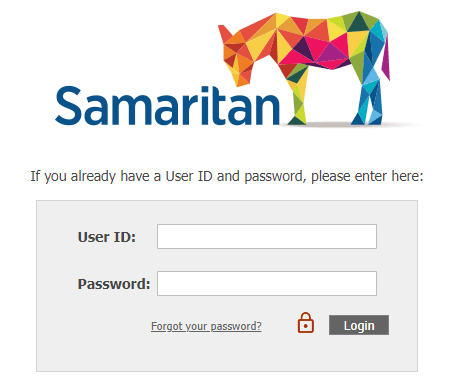
- Open your organization’s eCoordinator login page
- Enter your User ID and password
- Click Login
Note: When logging in for the first time, from a new browser, from a new computer, or after clearing your cache, you will need to disable your browser's pop-up blocker
Disable your browser pop-up blocker
Internet Explorer
⚠️We recommend you do not use Internet Explorer as it poses a security issue and is eventually being phased out by Microsoft.
-
-
- At the bottom of the login screen the pop-up permission window will appear
- Click Options for this site → Always allow
- Retype user ID and password
- Click Login
- If you see the Confirm to Continue message click Login
-
Google Chrome
-
-
- At the top of the login screen the pop-up permission window will appear
- Click the icon with a red X in the upper right corner of the screen
- Select Always allow pop-ups and redirects from…
- Retype user ID and password
- Click Login
- If you see the Confirm to Continue message click Login
-
Firefox
-
-
- At the top of the login screen the pop-up permission window will appear
- Click Options → Allow pop-ups for...
- Retype user ID and password
- Click Login
- If you see the Confirm to Continue message click Login
-
Reset your password
- Set a new password following the prompt
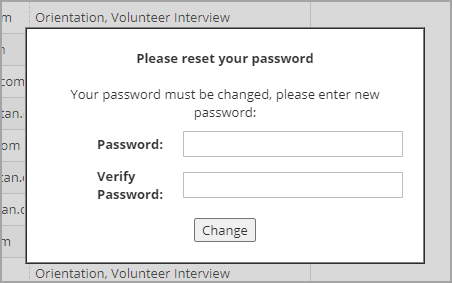
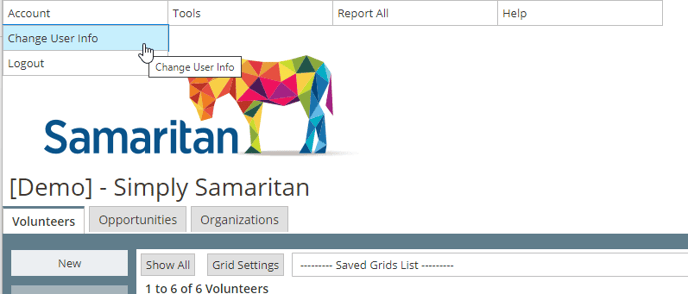
- If you do not see the reset password prompt, go to Account → Change User Info
- To reset password type in your temporary password in the Old Password field and your new password in the fields below. Change other user info as needed.
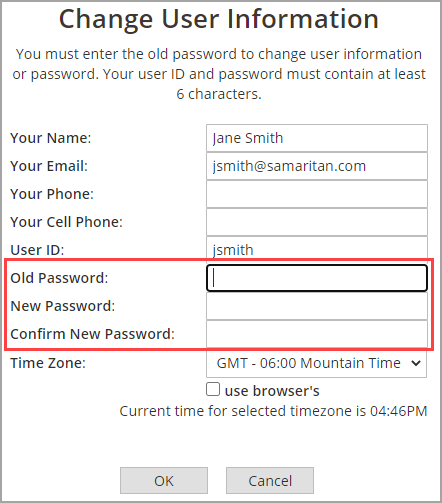
- Click OK to save