![eCLogo.png]](https://help.samaritan.com/hs-fs/hubfs/eCLogo.png?height=40&name=eCLogo.png)
As a volunteer manager, you’re often spinning a dozen plates at once. Between managing your people, your opportunities, and your community partners, keeping your data consistent shouldn’t be another chore on your list.
That’s where Synched User-Defined Fields (UDFs) come in. Think of them as a "bridge" between different parts of your system. Instead of manually updating the same information in two places, we’ve built a way for your records to "talk" to each other.
What are Synched UDFs?
Usually, a UDF belongs to just one area—like a Volunteer profile or an Opportunity. A Synched UDF is a pair of identical fields that live in two different record types but stay perfectly in step.
There are two primary ways these help you stay organized:
-
Consistency: You only have to manage one list (like "Program Types"). If you update it in one place, it updates everywhere.
-
Automation: The system can actually "pass" information from an Opportunity to a Volunteer automatically during placement, saving you the manual data entry.
How to Configure Your Synched UDFs
Let’s walk through the setup using a real-world scenario. Imagine you’re launching a new "Pet Therapy" program. You need to know which Opportunities are "Pet Friendly" and which Volunteers are ready to bring their furry friends along.
Step 1: Building the Bridge
First, we need to create the field in one place and tell the system to mirror it elsewhere.
-
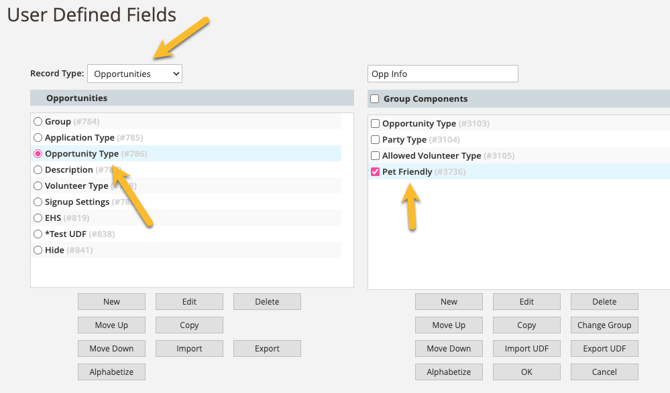
Start where it feels natural: Go to your UDF Management window and start a new UDF under Opportunities (since that’s where the "Pet Friendly" status starts).
-
Configure as usual: Give it a name, a description, and choose your format (like a "Yes/No" dropdown).
-
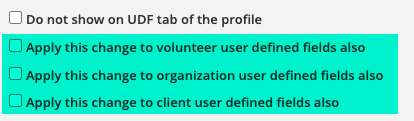
Check the Sync box: At the bottom of the configuration window, look for the section of checkboxes. Select "Apply this change to volunteer user defined fields also."
-
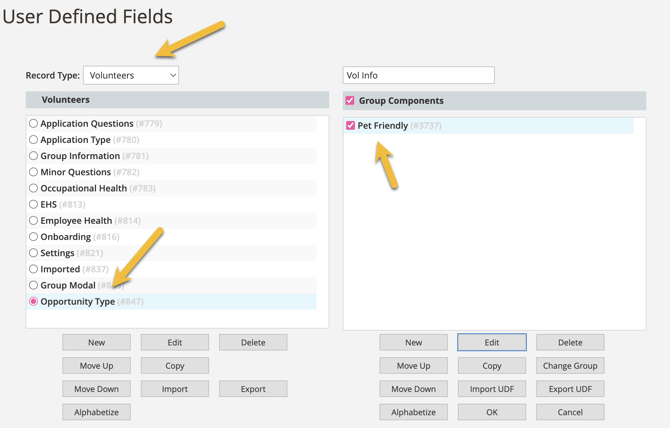
Save: Once you hit save, eCoordinator creates an exact twin of that field in the Volunteer record type.
Step 2: Letting the Data Flow
Now that the bridge exists, you can tell the system to move data across it automatically. This is a "scrappy" way to save hours of entry.
-
Re-open your primary UDF: Go back into the configuration for that "Pet Friendly" field in the Opportunity section.
-
Enable the "Flow": You’ll notice a new option has appeared, nested under the first one: "Apply [Opportunity] values to [Volunteer] profile on referral or placement."
-
Check it and Save: Now, the system is watching. The moment you place a volunteer into a "Pet Friendly" opportunity, the software will automatically update that volunteer's profile to match.
A Few Tips from the Trenches
Because we understand the struggle of maintaining a clean database with limited resources, here are a few things to keep in mind:
-
One Edit, Two Fixes: Since these fields are "twins," any change you make to the settings (like adding a new dropdown option) will automatically apply to both records.
-
The "One-Way" Rule: While the configuration stays synced both ways, the values (the actual data) only flow in one direction—from the primary record to the secondary one.
-
Embrace the Blank Space: If an opportunity isn't "Pet Friendly," it’s best to leave the field empty rather than selecting "No" or "N/A." The system is smart enough to skip blank fields, which prevents you from accidentally overwriting a volunteer's existing data with a "No."
-
Dynamic Prerequisites: The synched UDF prerequisite filter equals related opp field is automatically added to all synched UDFs prerequisite filter options. Using this option, you can dynamically show volunteers only the opps that match their specific requirements. This saves you from having to build a unique prerequisite for every single value in your system.
Need a hand? We know this is one of the more advanced corners of the software. If you're feeling stuck or want to make sure your "bridge" is built correctly, please reach out to our support team. We're here to help you get this right!