![eCLogo.png]](https://help.samaritan.com/hs-fs/hubfs/eCLogo.png?height=40&name=eCLogo.png)
Our Messaging tool is designed to be a multi-channel hub within eCoordinator (eC). Our goal is to help you meet your volunteers and coordinators where they are, whether that’s in their inbox, on their phones, or at the sign-in kiosk.
Accessing the Messaging Tool
The Messaging tool is context-aware, meaning it adapts to the work you are doing at that moment. The profile tab you open the messaging module from (Volunteers, Opps, Orgs, etc.) is important because it automatically adjusts three key things.
-
Your "To" Options: It suggests recipients based on relationships to the selected record. For example, opening it from the opportunity profile allows you to quickly message opp contacts, as well as all vols signed up for the selected opp.
-
Merge Field Options: The tool provides "Merge Fields" (like
[FirstName]) relevant to the tab you are in, ensuring your personal touches are accurate. -
Report Attachment Options: It streamlines which reports are available to attach, helping you get the right data to the right person.
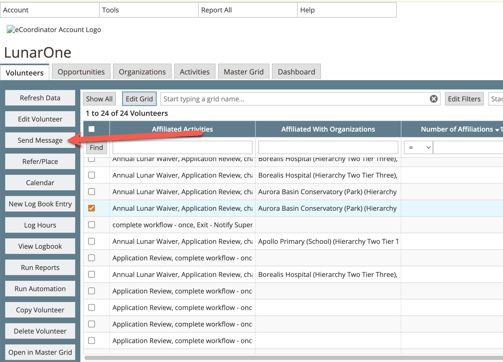
From any profile tab, select your records and click the Message (or Email) button.
You may need to select a record to enable the Message component. From there, you may compose a new message, open and edit existing templates, and save new templates.
Message options may vary by which profile tab the component is opened from.
Messaging Channels
The Messaging tool allows you to speak to your volunteers and coordinators through three distinct pathways: Email, Text, and Sign-in.
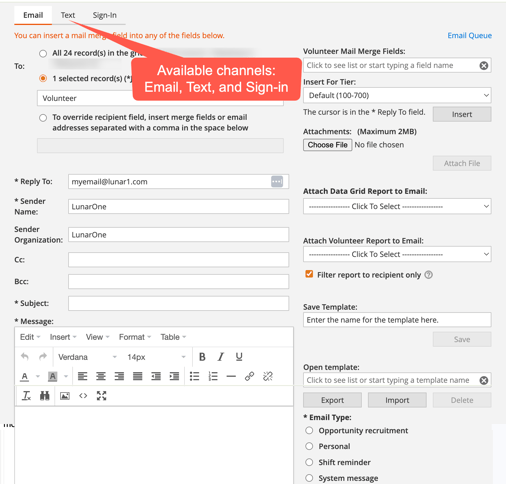
Email: The reliable standard for notifications, shift confirmations, and detailed updates.
Texting (MMS): Perfect for urgent alerts or quick reminders. Note: This is a one-way notification. Volunteers must opt-in and provide their mobile carrier in order to receive texts.
Sign-In Station Messages: A high-touch feature unique to Samaritan. This pauses a volunteer during their physical check-in at a kiosk or on their personal device to show them a specific note, like a safety reminder or a "Happy Birthday!"
Don't see options for Text and Sign-in when you open the messaging tool? Contact Support about adding these options to your account.
Learn More About Messaging
Setting Up for Success
Before you send your first message, a little groundwork ensures a smooth experience for everyone.
Volunteer Preferences & Privacy
We believe in respecting a volunteer's time and digital space. In the initial eRecruiter application, ensure volunteers can select their Email Types (e.g., Newsletters, Training, or Opportunities).
Secure Messaging
If you need to send sensitive information, you can enable Secure Messaging. When enabled, the Message module contains an additional check box to send a secure message when emailing volunteers. If checked, the vol will receive an email with a link to log into eRecruiter to view the secure message.
Contact Samaritan Support for assistance.